The original Lost Games interactive takes readers into a virtual school courtyard, where they can discover and play capteh, kuti kuti, five stones and pick-up sticks. Building that experience meant combining reporting, illustration, 3D environments and lightweight game mechanics into one continuous story.
Designing the experience of traditional games

We wanted the digital version to feel as approachable as the games themselves: familiar, colourful and easy to join.
Part of the appeal of these games is in their simplicity. You can watch someone play, understand the basic idea and join in. We tried to preserve that quality on screen.
We built the games in 2D canvas to keep the interactions simple and immediate, rather than adding the more complex controls of a fully 3D game.
To make these four games feel like one experience, we created a shared visual language that kept the bright colours of the traditional toys while using a retro-inspired style to give the experience a sense of nostalgia.


Instead of placing the games on an abstract background, we set them in a school courtyard inspired by older Singapore schools, where many of these games were actually played.
Making 3D and 2D feel harmonious
The courtyard was designed in 3D, while the games were 2D. We used 3D to bring the games into the setting where they were once played, while 2D helped preserve the simplicity and ease of the games themselves. The trick was making the transition between these styles almost disappear.
Characters and props inside the 3D courtyard are flat images. From a distance, they sit lightly in the scene. When the camera zooms in for a game, animated versions turn to face the viewer.


Readers do not arrive at a completely different visual world when play begins. The same illustrated language they see in the courtyard simply becomes interactive. Consistent colour, illustration and composition help.
Behind the scenes, the experience switches from a 3D environment to a 2D canvas, but visually, the transition feels continuous.
Building it to load fast
A playful 3D world is useful only if it works on a phone. This meant deciding what the browser did and did not need to calculate so the games would load quickly.
Bake the light
In a conventional 3D scene, the browser calculates how light hits surfaces and where shadows fall. Our courtyard did not need changing light, so we calculated the lighting in Blender beforehand and baked it into the textures.
Because shadows and reflections were no longer calculated at runtime, the browser did not need to recreate the finished look frame by frame.
A single texture covered the entire model, so 4K wasn’t a high enough resolution to keep the details sharp. We used an 8K bake, saved in WebP format, to preserve texture and shadow detail while keeping the file size manageable.

Animate with just two frames
The capteh animation uses just two frames packed into a single sprite sheet. By alternating between them, we created a simple kicking motion while keeping the animation lightweight. Because both frames were in one image, the browser needed to load only one asset.
Two-frame sprite sheet

Code snippet
<scrіpt>
  import { T } from '@threlte/core'
  import { AnimatedSpriteMaterial } from '@threlte/extras'
  import { assets } from '$app/paths'
</scrіpt>

<T.Sprite>
  <AnimatedSpriteMaterial
	textureUrl={`${assets}/images/gif/gif-capteh.png`}
	totalFrames={2}
	rows={1}
	columns={2}
	startFrame={0}
	endFrame={1}
	fps={2}
  />
</T.Sprite>
Four games, four sets of controls
No single control scheme matched all four games. Each one had to translate a different physical action into touch, mouse or keyboard input.
Rather than forcing the games into one interaction pattern, we looked for the simplest digital input that preserved the logic of each movement.
Capteh
The goal in this game is to keep the shuttlecock in the air. The digital version reduced that to moving the player into position at the right moment.
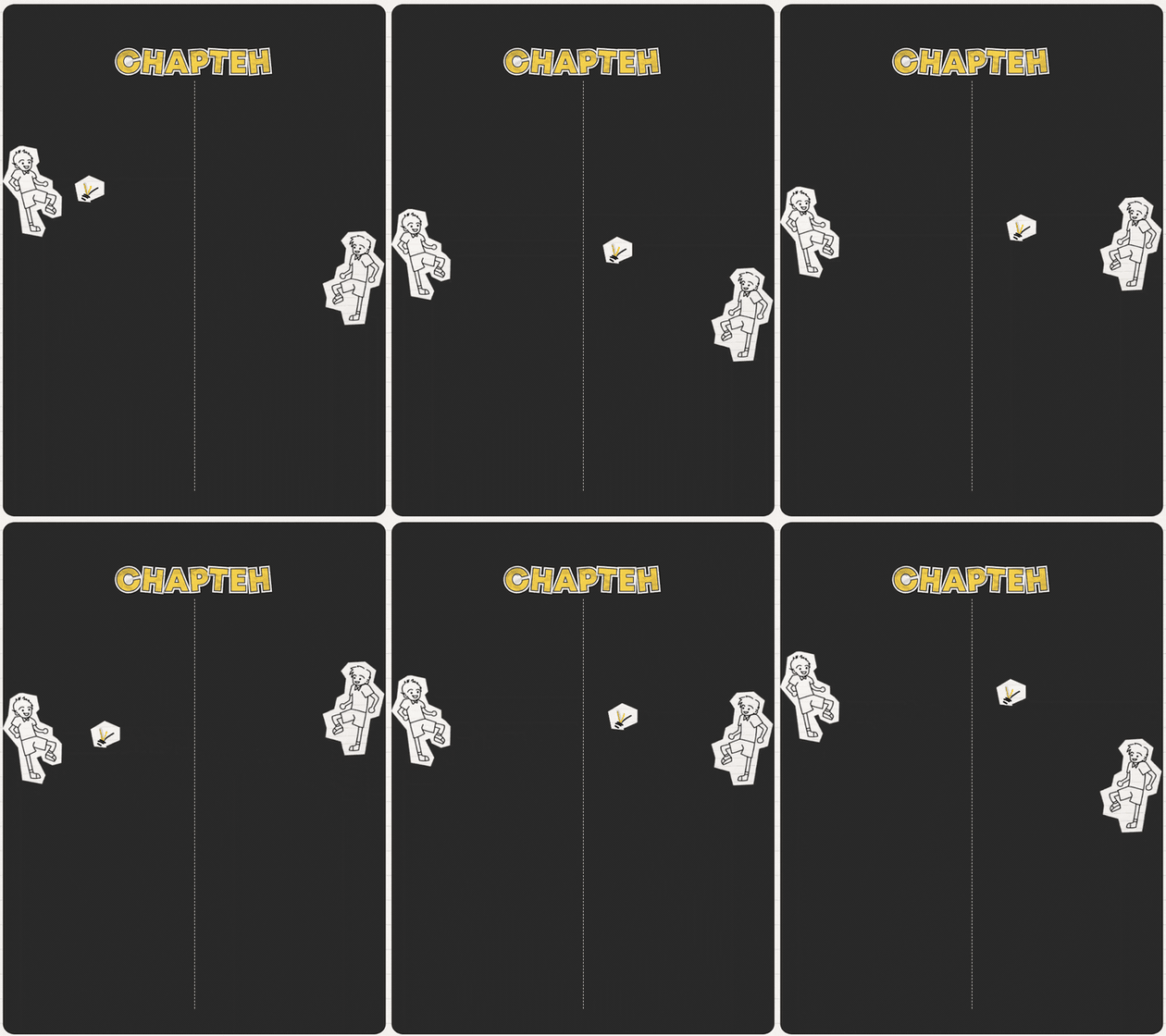
01 Physical action
Kick and keep it airborne
02 Digital translation
Move directly into position
03How to control
Mobile
Drag to move
Desktop
Press up/down arrow keys to move
Kuti kuti
When playing kuti kuti, the goal is to flick your piece onto your opponent’s piece.
Flicking translated naturally to a pull-and-release gesture, so we didn't need separate aim and power controls.

01 Physical action
Flick a piece with a finger
02 Digital translation
Pull back and release
03How to control
Mobile
Pull back to aim, release to flick
Desktop
Drag back to aim, release to flick
Five stones
The game involves tossing a stone into the air, picking up others and catching it again. Throwing, collecting and catching happen in sequence. The digital version separated moving from the action, with one contextual button that switched between throwing and grabbing.
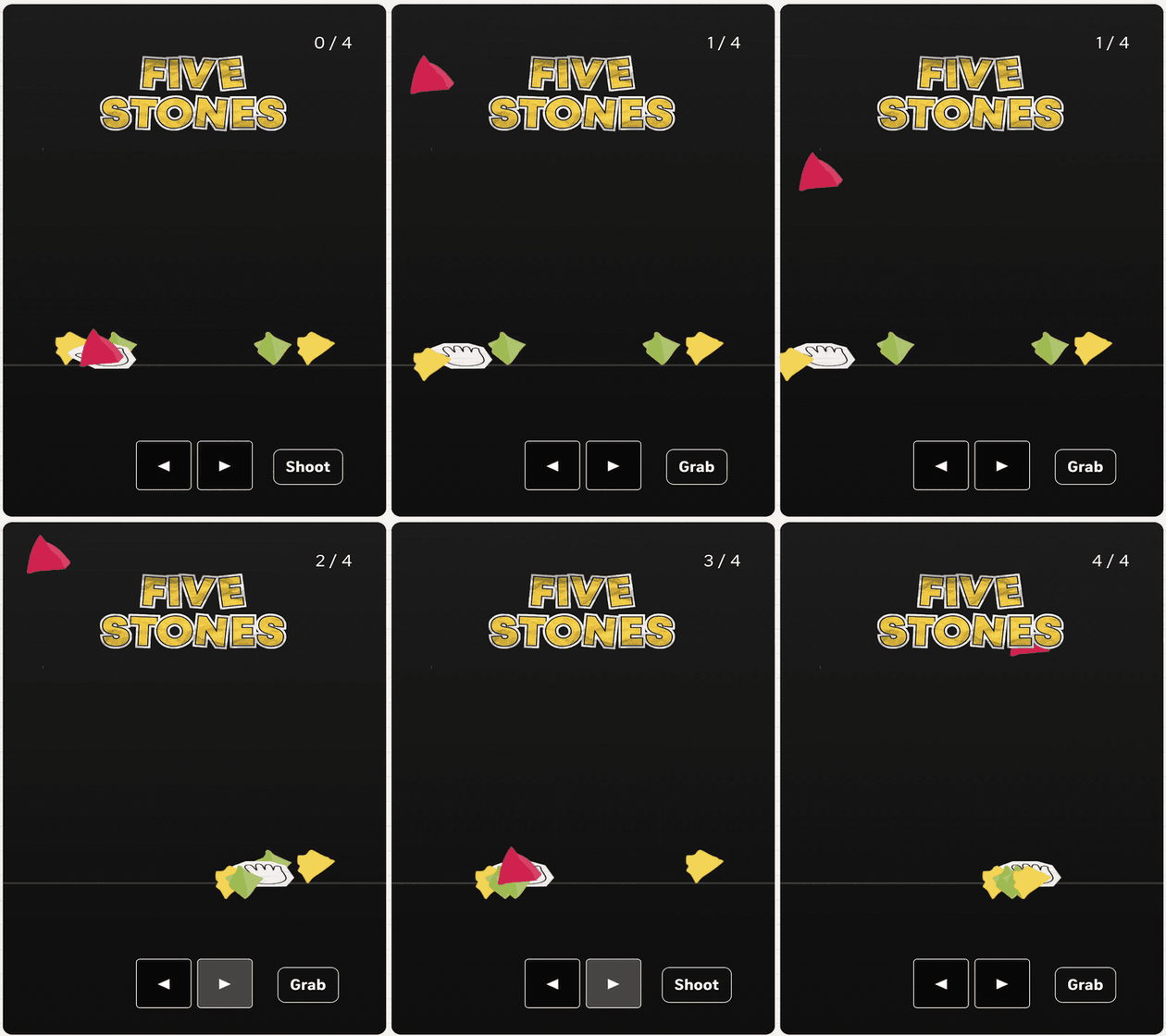
01 Physical action
Throw, pick up, then catch
02 Digital translation
Move, then throw or grab
03How to control
Mobile
Tap arrows to move, tap Shoot/Grab to act
Desktop
Press arrow keys to move, spacebar to act
Pick-up sticks
In this game, the challenge is to pick up one stick at a time without moving the others. Careful selection required aiming without obscuring the pile. The digital version therefore separated four-direction aiming from the “pick” action.
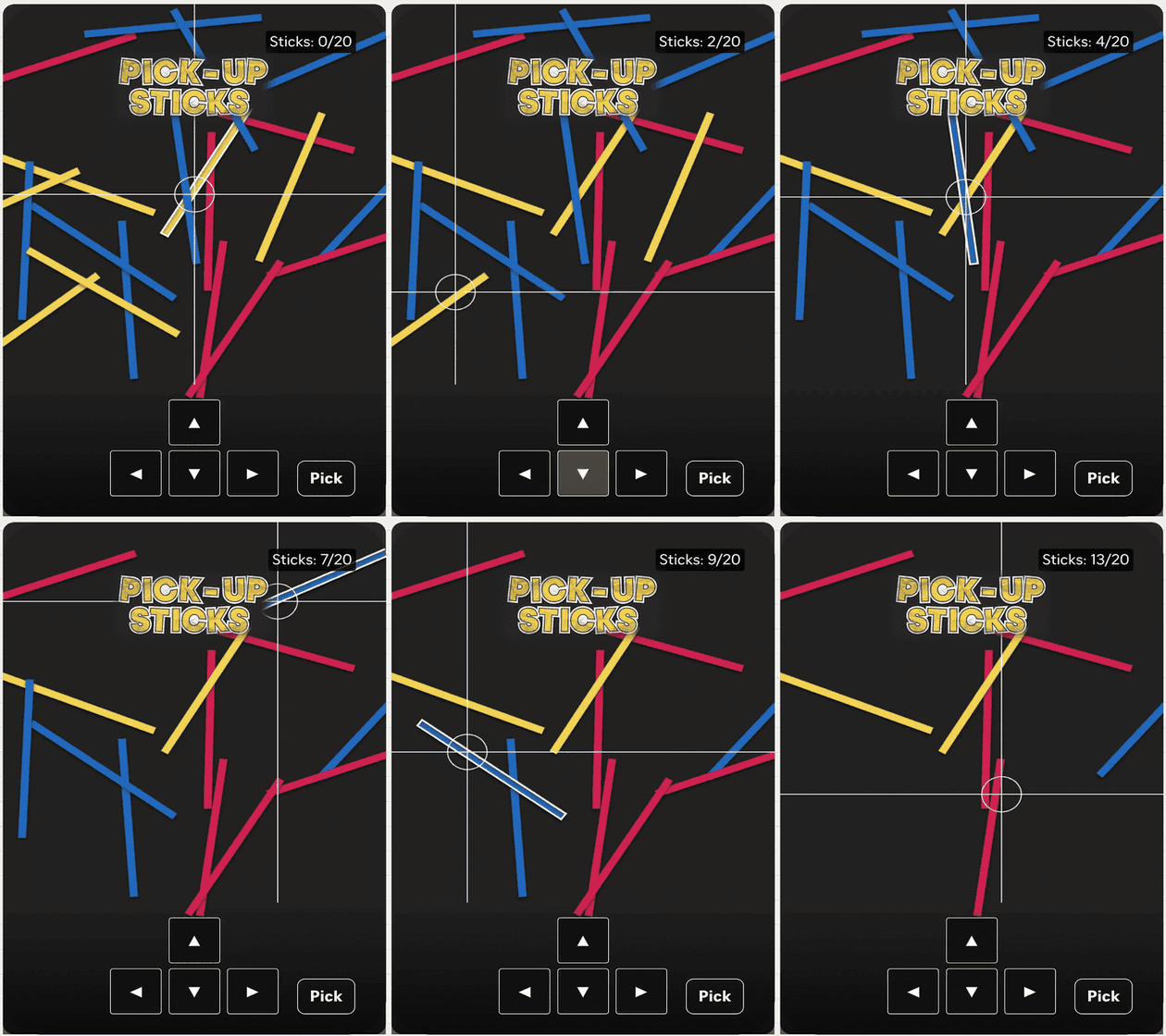
01 Physical action
Aim carefully and lift one stick
02 Digital translation
Aim in four directions, then pick
03How to control
Mobile
Tap arrows to aim, Pick to lift
Desktop
Press arrow keys to aim, spacebar to lift
Across all four games, the goal was not to precisely recreate every physical movement, but to preserve what made each game simple and fun to play. By translating those actions into familiar digital controls, we tried to make the games as easy to pick up online as they were in the school courtyard.
View the original interactive here.